Wi-Fi Works in One Room but Not Another: What’s Blocking the Signal?
Wi-Fi can be fast in one room and nearly unusable in the next. Walls, frequency bands, interference, and router placement explain the difference.
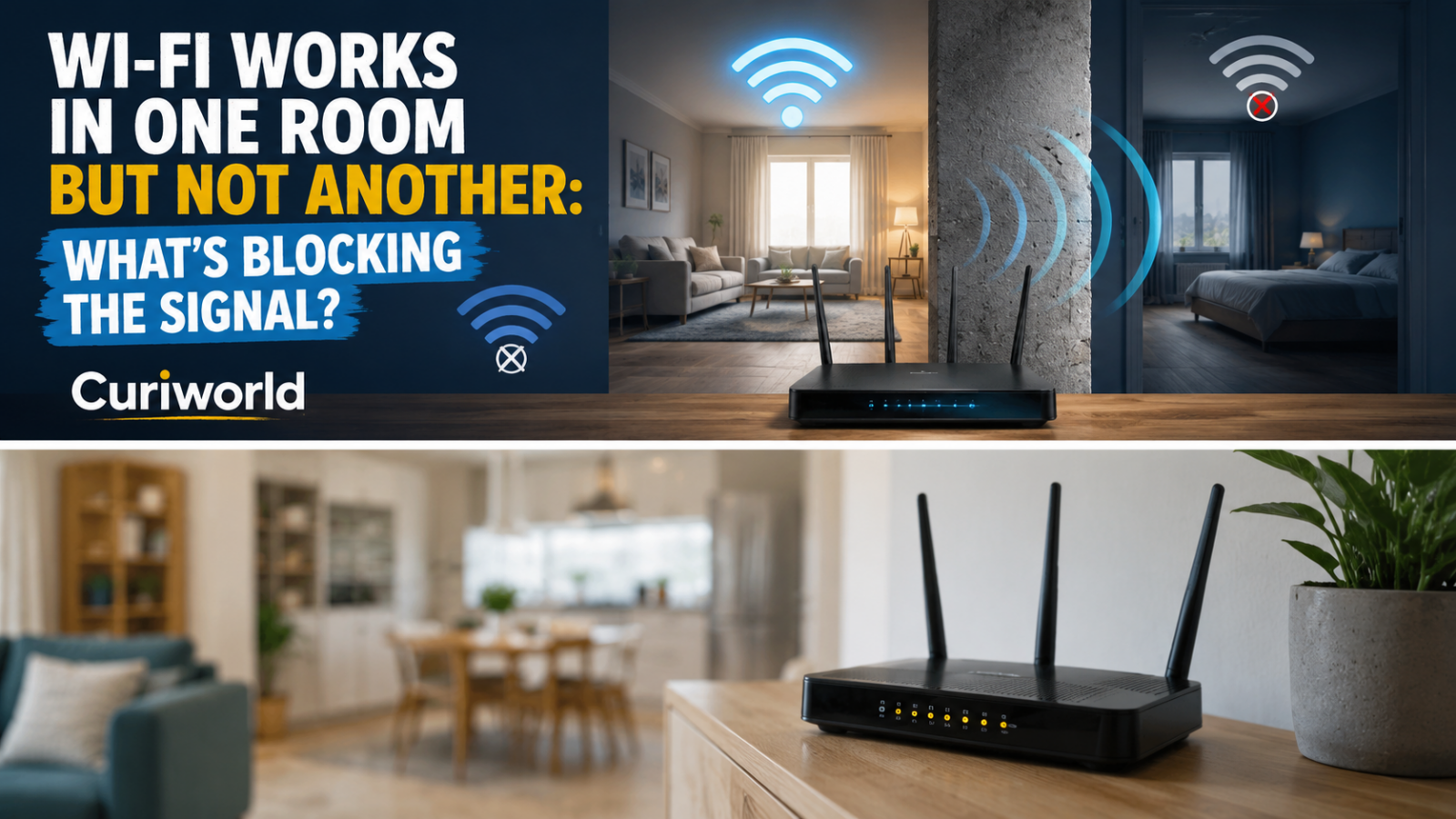
Your Wi-Fi is fast in the living room. You walk into the bedroom, close the door, and suddenly the video buffers, the call freezes, or the network drops to a single bar.
The internet connection itself may be perfectly fine.
When Wi-Fi works well in one room but poorly in another, the problem is usually the radio path between your device and the router. Distance matters, but walls, floors, building materials, router placement, frequency band, nearby networks, and household electronics can matter just as much.
That is also why a room ten feet from the router can sometimes have worse Wi-Fi than another room farther away.
The Shortest Distance Is Not Always the Best Wi-Fi Path
A router sends radio signals through your home, but those signals do not move through every room equally.
Imagine two bedrooms.
The first is 30 feet from the router but separated by an open hallway and one lightweight interior wall.
The second is only 15 feet away, but the signal must pass through a reinforced concrete wall, a large appliance, and a closet before reaching your laptop.
The closer room can easily have the worse connection.
Every obstacle between the router and your device can weaken, reflect, or redirect part of the radio signal. By the time it reaches the destination, there may not be enough usable signal left for a fast and stable connection.
This is why thinking only in terms of feet or meters can be misleading. What matters is not simply how far away the room is, but what the Wi-Fi signal has to travel through to get there.
Some Walls Are Much Harder on Wi-Fi Than Others
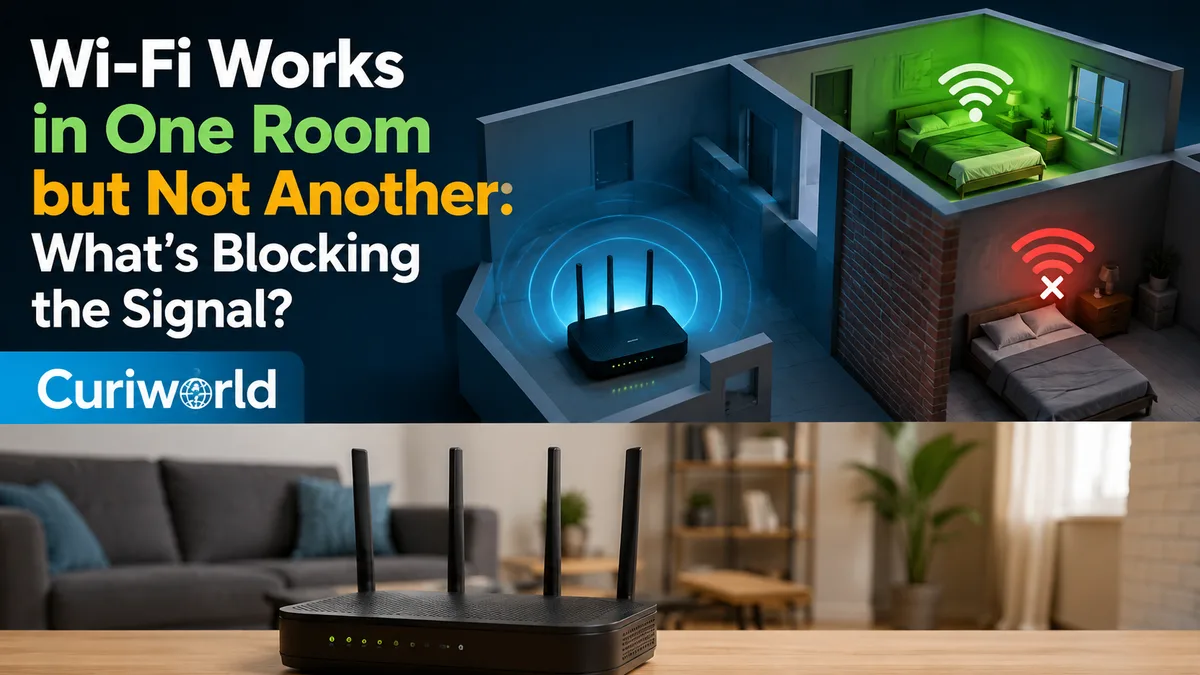
A wall is not just a wall to a radio signal.
Lightweight drywall, wood, and similar interior materials generally allow Wi-Fi to pass more easily than dense or conductive materials. Brick, concrete, reinforced concrete, and large amounts of metal can create much more difficult conditions.
The problem becomes greater when the signal has to cross several obstacles.
One wall may be manageable.
One wall plus a floor plus a large metal appliance can be very different.
Common obstacles that can contribute to poor room-to-room Wi-Fi include:
- thick brick or concrete walls;
- reinforced concrete floors;
- metal doors, cabinets, and shelving;
- large appliances;
- utility areas containing pipes, wiring, or machinery;
- several walls positioned between the router and device;
- placing the router inside a cabinet or behind furniture.
This also explains why Wi-Fi problems can be especially noticeable between floors. A signal traveling upstairs may need to cross a much denser structure than one moving horizontally through an open hallway.
Your Wi-Fi Band Can Change the Result Completely
Modern routers may use 2.4 GHz, 5 GHz, and, on compatible Wi-Fi 6E or newer equipment, 6 GHz frequencies.
They do not behave identically inside a building.
2.4 GHz generally travels farther and handles obstacles better. It can be a useful choice for rooms farther from the router, but the band is also more crowded and has less available spectrum.
5 GHz can provide higher throughput and usually has more room for Wi-Fi traffic, but its effective range is shorter and walls tend to affect it more.
6 GHz can provide excellent performance with compatible equipment when the connection is strong, but it is even more dependent on proximity and a favorable path to the router.
This creates a situation that can initially seem backward:
Your laptop may achieve excellent speeds on 5 GHz beside the router but struggle in a bedroom where the slower 2.4 GHz band maintains a more reliable connection.
Faster Wi-Fi is useful only when enough of the signal reaches you.
If your router combines several bands under the same network name, it may automatically steer devices between them. If the router allows separate network names temporarily, testing 2.4 GHz and 5 GHz individually can reveal whether frequency is part of the problem.
The Room May Be a Wi-Fi Dead Zone
Indoor wireless signals do more than travel directly from router to device.
They can also reflect from walls, furniture, metal surfaces, and other objects. Multiple versions of the same radio signal can therefore arrive at a device by different paths.
Sometimes those paths work together.
Sometimes they do not.
The result is that signal quality can change surprisingly quickly within a small area. Your laptop may struggle on one side of a room but perform better several feet away.
That is why a “dead zone” does not necessarily mean the router cannot reach the entire room. The specific position of the device can matter.
Before buying anything, try a simple experiment.
Run a speed test where the connection is poor. Then move several feet toward the doorway or to another part of the room and repeat it.
If performance changes dramatically, you are probably dealing with a wireless coverage problem rather than a slow internet plan.
Interference Can Make a Weak Room Even Worse
Poor coverage and interference often work together.
A strong Wi-Fi signal can tolerate a noisy wireless environment better than an already weak one. Once the signal has traveled through several walls, additional radio interference may be enough to make the connection unstable.
The 2.4 GHz band is particularly crowded because Wi-Fi shares that part of the spectrum with other wireless technologies and household equipment.
Nearby Wi-Fi networks can also compete for available airtime, especially in apartment buildings where dozens of routers may be operating within a relatively small area.
Household equipment can contribute too. Curiworld has a separate explanation of why a microwave can slow down 2.4 GHz Wi-Fi, a good example of how the internet service can remain healthy while the wireless connection inside your home becomes temporarily unreliable.
A useful clue is when the problem occurs.
If the room is always bad, physical coverage is a likely suspect.
If Wi-Fi becomes much worse at certain times of day, network congestion or interference deserves more attention.
If it fails only when a particular appliance is operating, that pattern is worth investigating.
Router Placement Can Matter More Than Buying a Faster Router
A powerful new router placed in a terrible location can still produce terrible Wi-Fi.
Routers usually perform better when they are positioned:
- reasonably centrally within the area that needs coverage;
- in an open location rather than inside a cabinet;
- away from large metal objects and major appliances;
- elevated rather than hidden on the floor;
- with as few major barriers as practical between the router and important rooms.
The convenient place for the internet cable is not always the best place for Wi-Fi.
Internet providers often install equipment near an exterior wall, utility box, television, or wherever the incoming line happens to enter the building. That location may be perfect for connecting the modem and terrible for covering the rest of the house.
Before replacing the router, temporarily moving it to a more open or central position can be an extremely useful test.
You do not need to redesign the room immediately. Even a temporary relocation can show whether placement is the main issue.
First Determine Whether the Problem Is Wi-Fi or the Internet
“Slow Wi-Fi” and “slow internet” are often treated as the same problem, but they are not.
Your internet service provider delivers a connection to your home.
Wi-Fi is the local wireless connection between your devices and your router.
If every device becomes slow throughout the home at the same time, the internet connection, modem, router, or broader network may deserve investigation.
If everything works normally beside the router but consistently fails in one bedroom, the evidence points much more strongly toward local wireless coverage.
A simple comparison helps:
Test the same phone or laptop close to the router.
Then test it in the problem room.
Using the same device removes one important variable.
If performance collapses only after moving rooms, purchasing a faster internet plan is unlikely to solve the underlying coverage problem.
Do Not Assume the Router Is at Fault Until You Test Another Device
There is another possibility: the room may be fine, but one device may not be.
Phones, laptops, televisions, game consoles, and smart-home devices do not all have identical antennas or wireless hardware.
A laptop may maintain a usable connection where an older smart TV repeatedly disconnects.
Before changing your entire network, try two or three devices in the same location.
If everything struggles in that room, focus on coverage.
If only one device struggles, investigate that device’s Wi-Fi adapter, software, band support, antenna placement, or network settings before blaming the house.
Extender, Mesh Wi-Fi, or Access Point?
If router placement cannot solve the problem, adding coverage may be more effective than replacing the router with another single-router system.
A Wi-Fi extender can be useful for relatively simple coverage gaps, but placement matters. An extender that is installed deep inside a dead zone has very little good signal to repeat.
A mesh Wi-Fi system uses multiple wireless nodes to distribute coverage around a home. It can be particularly useful in larger layouts or buildings where one router cannot reach every important room reliably.
A wired access point can be an even stronger solution when Ethernet cabling is available. Instead of trying to force a distant wireless signal through several walls, the wired connection carries the network closer to the problem area and a local access point provides Wi-Fi from there.
For fixed equipment such as desktop computers, televisions, or game consoles, Ethernet itself remains another option. A wired connection bypasses room-to-room Wi-Fi propagation entirely.
The right choice depends on the building. A small apartment with one weak bedroom may need only better router placement. A multi-story concrete home may benefit much more from multiple access points or a carefully placed mesh system.
A Five-Minute Test Can Tell You a Lot
Before buying new networking equipment, try diagnosing the problem in this order.
1. Test beside the router.
Confirm that the connection is performing normally at short range.
2. Test the problem room with the same device.
A large difference points toward Wi-Fi coverage rather than your internet plan.
3. Test a different Wi-Fi band.
If available, compare 2.4 GHz and 5 GHz. A distant room may perform better on 2.4 GHz even if 5 GHz is much faster beside the router.
4. Change position within the room.
Move a few feet, test near the doorway, and compare different locations. A surprisingly large improvement suggests a localized dead zone or difficult signal path.
5. Temporarily reposition the router.
Moving it higher, farther from metal objects, or toward the center of the home can reveal whether placement is responsible.
6. Compare another device.
If only one device has trouble, the room itself may not be the main problem.
7. Look for timing patterns.
Problems that appear only at busy hours or while certain equipment is running may indicate congestion or interference.
Only after those tests should you decide whether an extender, mesh node, additional access point, or new router is actually necessary.
The Wall Between You and the Router Matters More Than It Looks
When Wi-Fi works perfectly in one room and fails in another, the router has not suddenly forgotten how to provide internet.
The radio environment changed.
A few extra walls, a dense floor, an awkward router location, the switch from 2.4 GHz to 5 GHz, nearby interference, or even the exact position of your device can transform a strong connection into an unreliable one.
That is why the most useful question is not simply, “How far am I from the router?”
Ask instead:
What is the Wi-Fi signal traveling through to reach me?
Once you identify that path, the solution becomes much easier to choose—and sometimes all it takes is moving the equipment you already own.
Sources
Microsoft Support — Wi-Fi and Your Home Layout
https://support.microsoft.com/windows/wi-fi-and-your-home-layout-e1ed42e7-a3c5-d1be-2abb-e8fad00ad32a
Intel — 2.4 GHz vs. 5 GHz vs. 6 GHz: What’s the Difference?
https://www.intel.com/content/www/us/en/products/docs/wireless/2-4-vs-5ghz.html








Join the discussion