Why Does Your Laptop Fan Suddenly Get So Loud?
Your laptop fan suddenly sounds like a tiny jet engine. It may be completely normal—or a clue that heat, software, dust or airflow has changed.
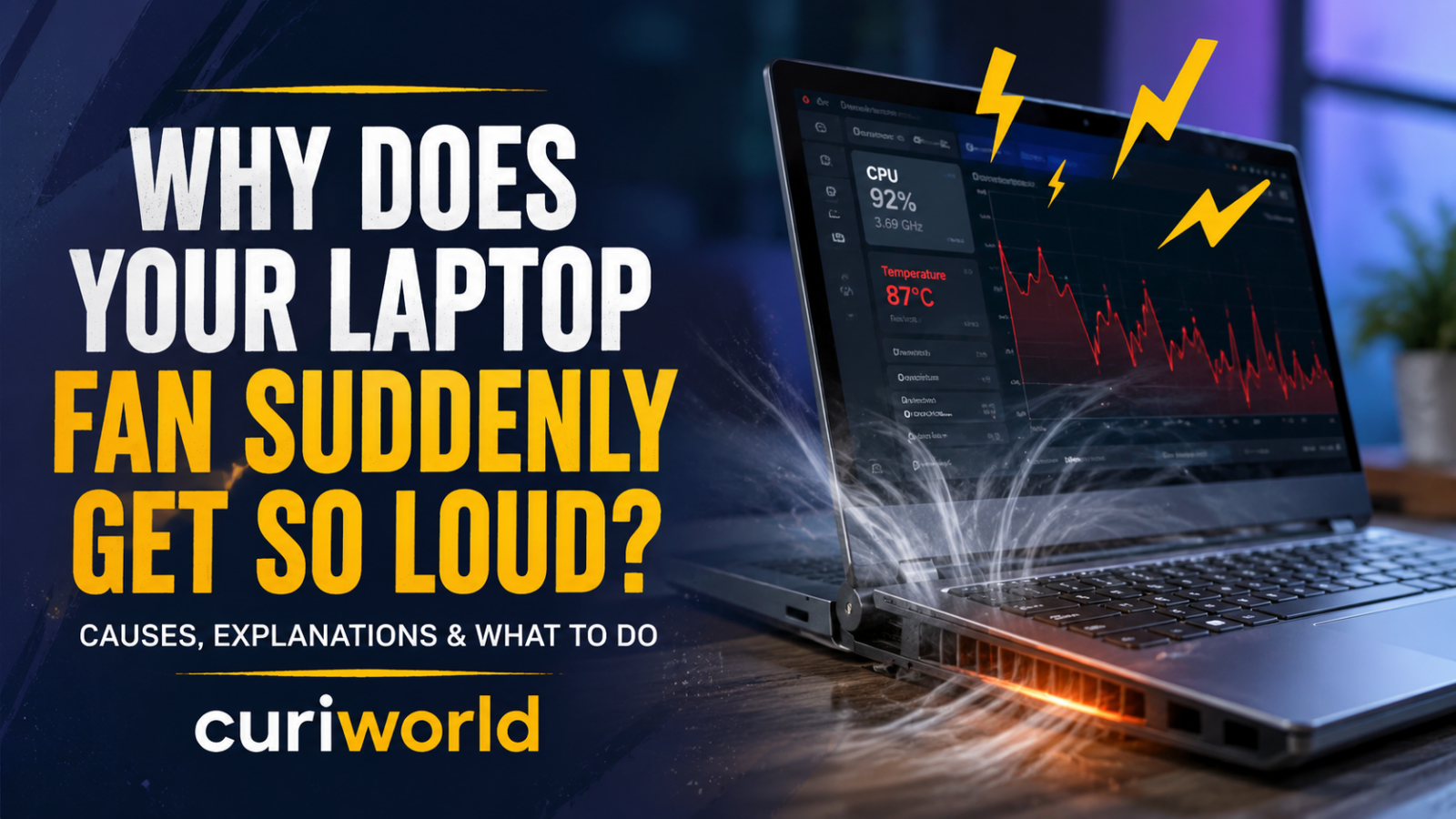
Your laptop can be nearly silent one minute and sound like it is preparing for takeoff the next. In most cases, that sudden noise does not mean the fan itself has broken.
A laptop fan gets louder when the cooling system needs to move more air. That usually happens because the processor or graphics chip is producing more heat, background software has suddenly become active, airflow is restricted, the room is warm, or the laptop has switched into a higher-performance state.
The important clue is not simply how loud the fan becomes. It is what the laptop was doing when the noise started—and whether the fan becomes quiet again afterward.
Why Can the Fan Get Loud So Suddenly?
A laptop does not need maximum cooling all the time.
During light work such as reading a document or browsing a simple webpage, the processor may consume relatively little power and generate modest amounts of heat. The fan can therefore stay slow or, on some systems, temporarily stop.
Then something changes.
You open a game. A browser tab begins processing video. Photos start syncing. An operating-system update runs in the background. A video call activates the camera and effects processing. The processor suddenly has considerably more work to do.
More electrical power being consumed by the laptop’s components generally means more heat must be removed.
Temperature sensors inside actively cooled computers monitor thermal conditions. When additional cooling is required, the system increases fan speed. Apple notes that processor-intensive tasks such as video processing, graphics-heavy gaming and drive indexing can make fans run faster, while Dell similarly identifies demanding workloads and high background activity as common reasons for louder cooling fans.
The change can sound dramatic because fan speed does not necessarily rise at a pace you consciously notice. The computer may stay relatively quiet until cooling demand increases, then rapidly move much more air.
Your Laptop May Be Working Hard Even When You Are Not
One of the most confusing situations happens when the fan becomes loud while you appear to be doing almost nothing.
The screen may show only a browser and an empty desktop, but that does not mean the computer is idle.
Background activity can include:
- operating-system updates;
- antivirus or security scans;
- cloud-file synchronization;
- photo or file indexing;
- application updates;
- browser tabs running scripts or video;
- backup software;
- recently installed software completing setup;
- or an application that has become unusually resource-intensive.
This is especially common shortly after starting a laptop, installing a major update, migrating files or setting up a new computer.
The same distinction between visible activity and actual processor activity also appears in smaller devices. A phone, for example, can generate unexpected heat while apparently unused because processes continue in the background. Curiworld explains that behavior in its guide to why a phone can get hot while you are not using it.
With a laptop, that invisible workload often announces itself through the fan.
Start by Checking What Is Using the Processor
Before buying a cooling pad or assuming the laptop needs repair, find out whether software is creating the heat.
Windows users can open Task Manager and sort running processes by CPU usage. On a Mac, Activity Monitor can be used to inspect processor activity.
Look for a process that stays unusually high while you are supposedly doing very little.
A temporary spike is not necessarily a problem. Software installing an update or a browser briefly processing a demanding page can legitimately use a large share of the processor.
What deserves more attention is persistent heavy activity that you cannot explain.
If closing an unnecessary resource-heavy application causes processor usage to fall and the fan gradually becomes quieter, you have found a strong clue: the cooling system was responding to workload rather than suffering from a fan defect.
Do not randomly terminate system processes simply because they appear near the top of the list. Identify the application or process first.
The Surface Under Your Laptop Matters More Than It Seems
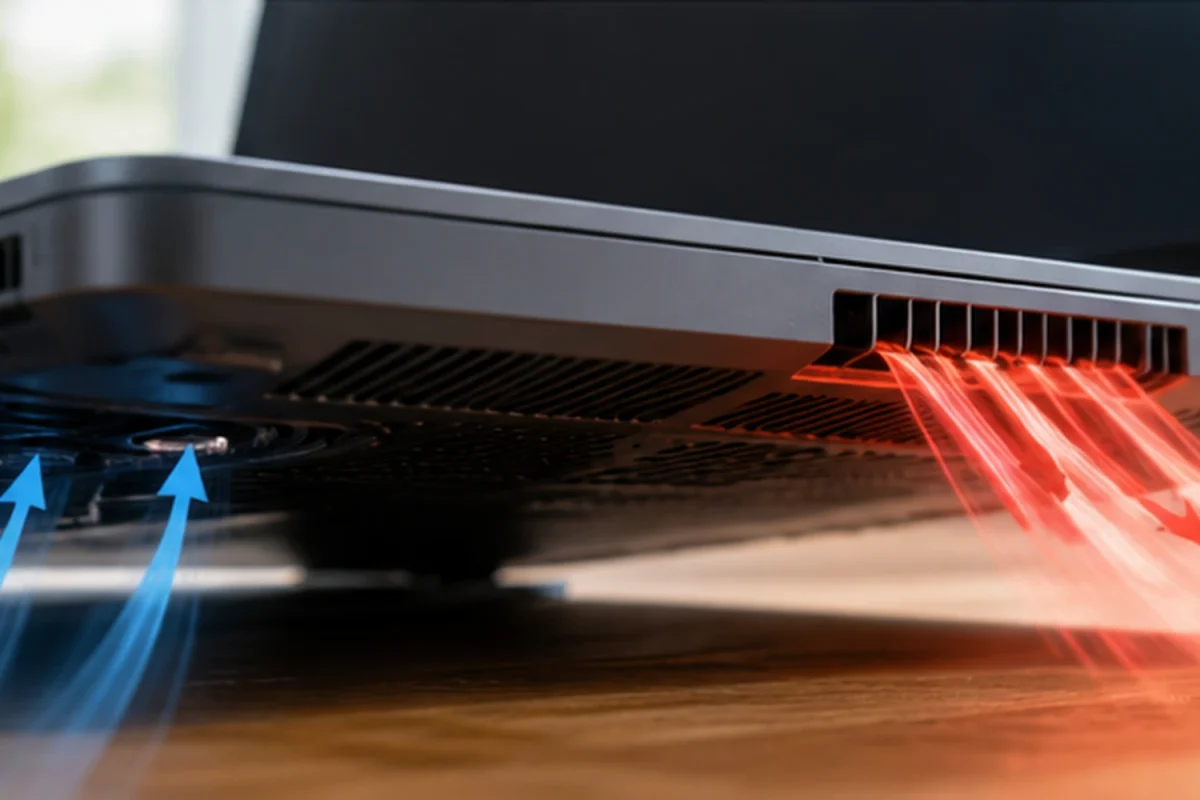
A laptop placed on a desk and the same laptop placed on a blanket may behave very differently.
Many laptops draw cooling air through openings on the bottom or sides of the chassis. Soft surfaces can partially block those openings.
A bed, pillow, sofa or thick blanket can therefore make it harder for cool air to enter and hot air to escape. The cooling fan compensates by working harder.
Both Apple and Dell recommend using laptops on firm, stable surfaces rather than soft materials that can obstruct ventilation.
If your fan suddenly becomes loud while you are using the laptop in bed, move the computer to a hard, flat surface and see whether its behavior changes after temperatures have had time to fall.
Sometimes the simplest explanation really is airflow.
Dust Can Make a Normal Fan Work Much Harder
Cooling performance can gradually deteriorate as dust and debris accumulate around vents and internal cooling components.
The change may be subtle.
A laptop that once handled ordinary tasks quietly may begin running its fan more frequently. Eventually, even moderate workloads can trigger noticeably more noise because moving the required amount of air has become more difficult.
Dell specifically identifies dust accumulation and blocked vents as common contributors to excessive laptop fan noise.
Inspect the visible intake and exhaust vents. If they are covered in obvious dust, follow the cleaning instructions recommended by your laptop manufacturer.
Opening a laptop is a different matter. Internal layouts vary considerably, and disassembly can introduce risks or affect warranty coverage. If deeper cleaning is required and you are not comfortable servicing electronics, professional servicing is the safer choice.
A Hot Room Can Make the Same Laptop Louder
Your workload is only half of the temperature equation.
The laptop must release heat into the surrounding air. If that surrounding air is already warm, the cooling system has less favorable conditions to work with.
That means a laptop performing the same task may run quietly in a cool office but use its fans more aggressively in a hot room.
Apple specifically notes that higher ambient temperatures can cause fans to activate sooner and run faster.
Direct sunlight can make conditions worse. So can leaving the laptop near another heat source.
If fan noise changes noticeably with the environment, temperature may be contributing even if nothing about your software has changed.
Charging Can Sometimes Make the Fan More Noticeable
You may also notice a pattern in which the laptop becomes louder shortly after being connected to power.
There are several possible reasons.
Charging itself can contribute additional heat, but plugging in can also change how some laptops manage performance. A computer that limits processor performance while running on battery may allow higher sustained performance when connected to external power.
Dell notes that charging can add heat inside the chassis and increase cooling demand.
This does not mean there is automatically a charging problem.
If the laptop becomes slightly warmer and the fan becomes temporarily more active while charging, that can be normal. Extremely high temperatures, repeated shutdowns or obvious battery abnormalities are a different situation and should not be dismissed as routine fan behavior.
Performance Modes Can Trade Silence for Speed
Modern laptops often include performance or power modes.
A high-performance setting allows the processor to use more power when necessary. That can improve speed during demanding work, but additional power consumption can also create more heat.
Balanced or power-saving modes usually place tighter limits on performance and may therefore reduce fan activity during ordinary tasks.
Dell lists balanced power settings as one possible way to reduce unnecessary heat and fan noise.
That does not mean everyone should permanently select the lowest-power option. If you are rendering video, gaming or performing computational work, higher fan speeds may simply be the cost of maintaining performance safely.
The goal is not to prevent the fan from running.
The goal is to determine whether its behavior makes sense for what the computer is doing.
When Is a Loud Laptop Fan Normal?
A temporarily loud fan is usually unsurprising when the laptop is:
- gaming;
- editing or exporting video;
- running demanding creative software;
- installing updates;
- performing a security scan;
- handling many browser tabs;
- running virtual machines or development tools;
- processing large files;
- participating in a resource-heavy video call;
- or being used in a warm environment.
If the fan becomes louder during those activities and quiets down when the workload ends, the cooling system is probably doing exactly what it was designed to do.
A loud fan is not automatically an overheating fan.
Sometimes it is the reason the laptop is not overheating.
When Should Fan Noise Make You Pay Attention?
The type of sound matters.
A strong rushing-air or “whooshing” sound usually means the fan is spinning quickly.
Mechanical noises are different.
Grinding, rattling, scraping, clicking or other irregular sounds can suggest that the problem is not simply high fan speed. Microsoft describes grinding, whining and ticking-type noises as abnormal fan behavior on Surface devices, while Dell advises investigating rattling or grinding sounds that may indicate mechanical problems.
Also pay closer attention if:
- the fan stays at high speed during very light use;
- the laptop becomes unusually hot repeatedly;
- performance suddenly drops while the fan is roaring;
- the computer shuts down unexpectedly;
- the noise has changed from airflow to a mechanical sound;
- or previously quiet everyday tasks now trigger constant maximum fan activity.
Those patterns justify further troubleshooting.
A Five-Minute Check Before Assuming Something Is Broken
If your fan suddenly becomes much louder than usual, start with the simplest possibilities.
First, place the laptop on a hard, flat surface and make sure its vents are unobstructed.
Then inspect current processor activity and see whether one application is consuming an unusual amount of resources.
Think about what changed immediately before the noise started. Did you launch a game? Connect the charger? Install an update? Open dozens of browser tabs? Start a video call?
Check the visible ventilation openings for dust.
If nothing explains the behavior, restart the laptop and observe what happens during light use afterward. Also make sure the operating system, drivers and manufacturer firmware are current using the update methods provided for your specific model.
These checks help separate three very different situations: normal cooling under load, inefficient cooling because of airflow or dust, and a possible hardware problem.
Should You Try to Force the Fan to Stay Quiet?
Usually, no.
The fan is part of the laptop’s thermal-management system. Silencing it without reducing the underlying heat does not solve the problem—it removes one of the mechanisms designed to deal with that heat.
Third-party utilities that manually alter fan behavior should therefore be used cautiously, particularly when you do not understand the temperature limits and cooling design of the specific laptop.
A better approach is to reduce unnecessary heat generation or improve airflow.
Close genuinely unnecessary heavy processes. Use an appropriate power mode. Keep vents clear. Avoid smothering the laptop on soft surfaces.
Let the cooling system do its job when demanding work actually requires it.
Loud Does Not Always Mean Broken
The sudden roar of a laptop fan is often alarming because it is one of the few ways a computer makes its internal workload physically obvious.
But the noise is usually a response, not the original problem.
A demanding application, background process, blocked vent, accumulated dust, warmer environment, charging state or performance setting can all increase the amount of heat the cooling system must remove.
The most useful question is therefore not simply “Why is my fan loud?”
Ask what changed immediately before it became loud.
If the answer is a heavy workload and the noise disappears afterward, there may be nothing wrong at all. If the fan remains unusually aggressive during basic tasks—or begins grinding, rattling or scraping—the laptop deserves a closer look.
Sources
Dell Technologies — How to Stop Laptop Fan Noise: Practical Fixes That Work
View source
Apple Support — About Fans and Fan Noise in Your Apple Product
View source






Join the discussion