Your Phone Feels Painfully Slow — Here’s What Actually Helps
A slow phone does not automatically need replacing. Low storage, overheating, misbehaving apps, software issues and aging hardware can all reduce performance—and some fixes are surprisingly simple.

You tap an app and wait.
The keyboard takes a moment to appear. Switching between apps feels sticky. The camera takes longer to open than you remember, and even simple actions seem to come with a tiny delay.
At some point, you start wondering: Why is my phone suddenly so slow?
A slow phone does not automatically mean you need a new one.
Performance can drop because storage is running low, an app is misbehaving, the phone is too hot, software needs attention, or the task you are doing has simply become more demanding than the hardware can comfortably handle.
There is also an important possibility people often miss: sometimes the phone itself is not slow at all. The internet connection is.
Before deleting half your apps or performing a factory reset, figure out what is actually slow.
First, Is the Phone Slow—or Is the Internet Slow?
This distinction can save a lot of unnecessary troubleshooting.
Suppose Instagram images take forever to load, a website feels sluggish, or a streaming app keeps buffering.
That does not necessarily mean the processor or memory is struggling.
It could simply be the connection.
Try something that does not depend heavily on the internet. Open Settings. Move between menus. Type a note. Browse photos already stored on the device.
If those actions feel normal while online content is slow, investigate Wi-Fi or mobile data before trying to “speed up” the phone.
If the problem mainly happens on Wi-Fi—and especially if it changes from room to room—see why Wi-Fi can work well in one room but poorly in another.
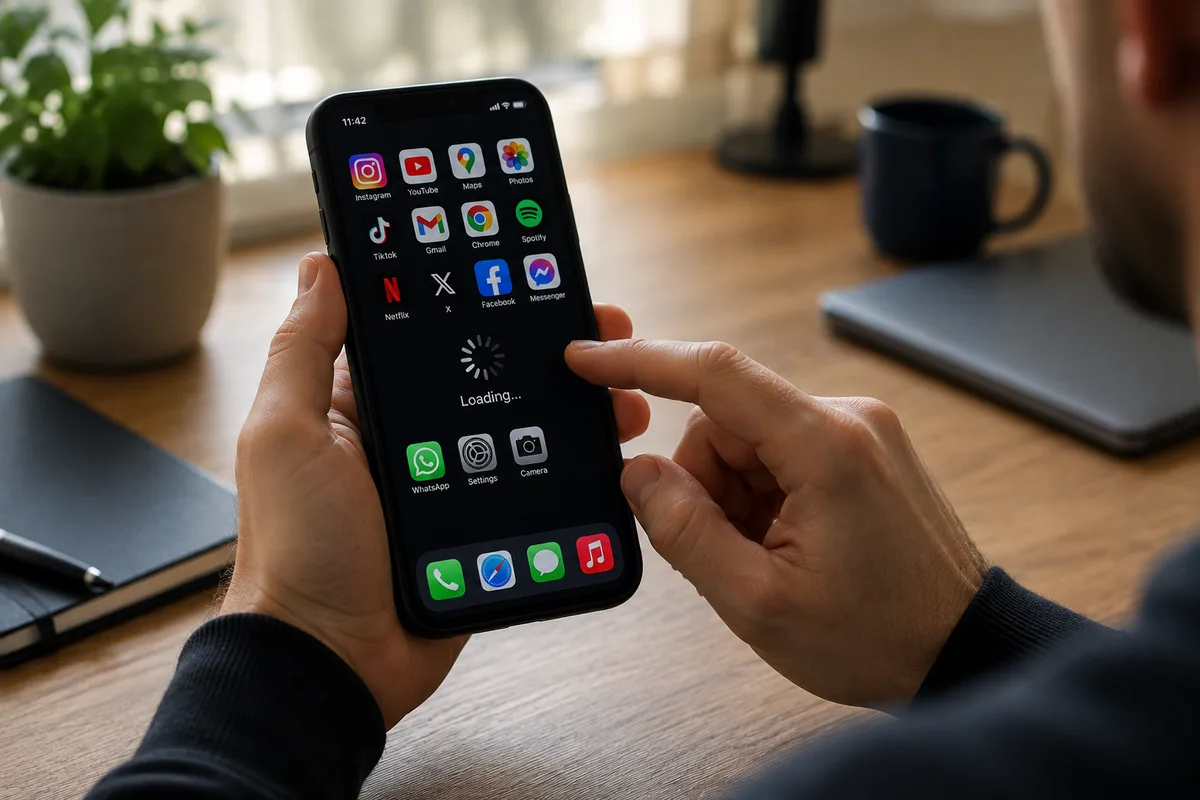
Apple specifically notes that network congestion and changing cellular conditions can make apps appear slow.
If the entire interface feels delayed—even during offline tasks—then the phone itself deserves more attention.
Restart Before You Start Deleting Things
It sounds almost too simple, but restarting is a sensible first troubleshooting step.
Phones run many processes over long periods. An application or system process can occasionally behave badly, consume resources, or stop responding as expected.
A restart clears the current session and gives the operating system a fresh start.
Google includes restarting among its first recommendations for troubleshooting a slow Android device.
The important part is what happens afterward.
If the phone immediately feels normal again but becomes slow later, you have learned something useful. A particular app, process, workload, or condition may be gradually causing the slowdown.
If restarting makes absolutely no difference, move on.
Do not restart the phone ten times hoping for a different result.
Check How Much Storage Is Left
Storage is one of the first places worth looking when a phone that used to feel responsive becomes sluggish.
Photos, videos, downloaded movies, messaging attachments, games, offline music, app data, and cached files accumulate gradually. Because the change happens over months or years, it is easy not to notice how close the device has become to full.
Google warns that Android phones can begin experiencing problems when less than 10% of storage remains available.
Apple recommends keeping at least 1 GB of free storage to avoid slowdowns on iPhone and iPad.
The exact amount you should keep free varies by device and workload, but the practical lesson is straightforward:
A phone needs some breathing room.
Check your Storage settings and look at what is actually consuming space before deleting things randomly.
Large videos, downloaded media, games you no longer play, and unused apps are often better candidates than important personal files.
Do Not Install a “Cleaner” Just Because Storage Is Full
Running low on space can make a phone troublesome, but that does not mean you need a third-party “RAM booster,” “phone cleaner,” or “speed optimizer.”
Be especially skeptical of apps promising dramatic performance improvements with a single button.
If storage is the problem, solve the storage problem directly.
Use the storage-management tools already provided by your operating system and review large or unnecessary files yourself.
Deleting something you genuinely do not need frees space.
An animated “BOOST” button does not magically upgrade your processor, add physical memory, or turn an aging phone into a new flagship.
Simple solutions are often better here.
One Bad App Can Make the Whole Phone Feel Worse
If the slowdown appeared recently, ask yourself what changed around the same time.
Did you install a new app?
Did an existing app receive an update?
Does the phone become slow only after opening one particular application?
Does one app freeze while everything else remains responsive?
That pattern matters.
An individual app can have a bug, consume excessive resources, or simply be poorly suited to your device.
Update your apps first.
If one app remains problematic, close that specific app and test the phone again. On Android, Google also recommends Safe Mode as a diagnostic option on supported devices because it temporarily disables downloaded apps. If the problem disappears there, a downloaded app becomes a much stronger suspect.
Do not immediately uninstall twenty apps.
Change one thing, test, and observe.
That way you actually discover the cause.
Closing Every App Constantly Is Not a Universal Speed Trick
The recent-apps screen can make it look as though dozens of applications are actively fighting for your phone’s resources.
That leads to a common ritual: swipe everything away, repeatedly, throughout the day.
But an app appearing in the recent-apps view does not necessarily mean it is actively consuming large amounts of processing power.
On iPhone, Apple specifically advises against unnecessarily force-closing apps and notes that reopening them can take longer because their data must be loaded again.
Force-closing makes sense when an individual app has stopped responding.
It is not a magic “make phone fast” button.
Modern mobile operating systems are designed to manage applications and memory themselves.
Troubleshoot the app that is actually causing trouble instead of assuming every background app is guilty.
Update the Operating System and Your Apps
Updates sometimes get blamed for performance problems, but running outdated software can create problems of its own.
Updates can include bug fixes, stability improvements, compatibility changes, and security patches.
On Android, check both system updates and app updates.
On iPhone, check for the latest software version available for your device and keep frequently used apps current through the App Store.
There is one nuance worth remembering.
Immediately after a significant software update, a phone may perform background tasks for a while. So do not judge long-term performance based entirely on the first few minutes after installing a major update.
If poor performance persists, continue troubleshooting rather than assuming every slowdown is simply “because of the update.”
Heat Can Make a Fast Phone Feel Slow
If your phone becomes sluggish while it is also unusually warm, those two symptoms may be related.
Smartphones have to control temperature.
When internal temperatures rise, the device can change performance to protect its components. Demanding games, navigation, video recording, charging, direct sunlight, and a hot environment can all contribute to heat.
Apple explicitly notes that an iPhone or iPad can run more slowly when it becomes too hot or too cold.
So pay attention to when the slowdown occurs.
Does the phone feel fine when you first pick it up but begin stuttering after twenty minutes of gaming?
Does performance drop while charging?
Does it happen outdoors on a hot day?
Those patterns point toward temperature rather than storage.
If the phone becomes hot even while sitting largely unused, Curiworld’s guide to a phone getting hot while you are not using it covers the possible causes in more detail.
Let an overheated phone return naturally to a moderate temperature. Do not put it in a freezer or try to cool it with ice.
Low Power Mode Can Trade Performance for Battery Life
Battery-saving features are useful precisely because they reduce energy consumption.
But reducing energy consumption can involve limiting certain activities or performance.
Apple states that some features work more slowly when Low Power Mode is enabled.
Android manufacturers also offer various Battery Saver or power-management modes, although their behavior differs between devices.
If your phone suddenly feels less responsive, check whether a battery-saving mode is active—especially if you enabled one manually and forgot about it.
Turning it off for a short test can help determine whether it is contributing to the slowdown.
That does not make battery-saving modes bad.
It simply means performance and battery endurance sometimes involve a trade-off.
Battery Condition Can Affect Performance Too
Storage and apps are not the only things that age.
The battery does too.
Rechargeable lithium-ion batteries gradually lose capacity and their ability to deliver peak performance as they chemically age.
Apple specifically recommends checking Battery Health when troubleshooting iPhone performance and explains that aging rechargeable batteries eventually become less effective.
If you have an older phone that has become both slower and noticeably worse at holding a charge, battery condition deserves consideration.
Curiworld’s guide to what can make a phone battery drain unusually fast covers battery drain separately.
The important point here is not to assume that every older phone needs a new battery.
Check the evidence available for your device first.
Heavy Tasks Can Expose Hardware Limits
Sometimes nothing is broken.
The phone is simply being asked to do something demanding.
Modern games, video editing, high-resolution recording, augmented reality, advanced camera processing, and heavily animated apps can require substantial processing power and memory.
An entry-level phone may run everyday messaging and browsing perfectly well while struggling with a demanding game.
An older flagship can eventually encounter the same problem as applications and operating systems evolve.
Notice whether the slowdown is universal.
If opening Settings takes forever, something broader may be wrong.
If everything feels fast except one graphics-heavy game running at maximum settings, the game’s workload may simply exceed what the hardware can comfortably deliver.
Those are very different problems.
Widgets, Background Features and Syncing Can Add Up
One background service usually will not transform a healthy modern phone into a painfully slow device.
But workloads can accumulate.
Cloud photo uploads, file synchronization, app updates, location services, backups, downloads, widgets, and other background tasks may temporarily compete for network, storage, processor time, or power.
This is particularly noticeable when several things happen at once—for example, immediately after restoring a phone, installing a large update, or syncing a large photo library.
Before disabling everything, look for timing.
Did the slowdown begin while thousands of photos were uploading?
Is the phone installing many app updates?
Was it recently restored from a backup?
Temporary heavy background activity may resolve once the work finishes.
Permanent blanket disabling should not be the first response.
Animations Can Change How Fast a Phone Feels
There is a difference between actual performance and perceived responsiveness.
Interface animations make transitions look smooth, but they also take time.
Reducing motion or animation effects on supported devices can make transitions feel more immediate to some users.
But keep expectations realistic.
Changing animations does not:
- increase processor speed;
- add RAM;
- repair failing storage;
- fix an overheating phone;
- or make a demanding game suddenly easy to run.
It changes how some interface transitions feel.
That can be worthwhile if you prefer it, but it should not be confused with repairing an underlying performance problem.
What Actually Helps a Slow Phone?
Instead of trying twenty “speed hacks,” work through the problem logically.
1. Decide What Is Actually Slow
Test offline menus and local apps.
If only internet-dependent tasks are slow, check the connection first.
2. Restart Once
Then observe whether the improvement lasts.
3. Check Available Storage
If the device is close to full, free meaningful space rather than deleting random tiny files.
4. Update the System and Apps
Install appropriate updates available for your device.
5. Identify Problem Apps
Look for a slowdown that began after installing or updating a particular app.
6. Check Temperature
If lag appears together with heat, allow the phone to cool naturally and determine what is creating the thermal load.
7. Check Power-Saving Settings
Temporarily disable restrictive battery modes to see whether responsiveness changes.
8. Consider Battery Health and Device Age
Particularly when poor performance appears alongside declining battery life.
9. Compare the Task With the Hardware
A phone that struggles only with one demanding game may not have a general performance problem.
The key is to test between steps.
If you change ten settings simultaneously, you may make the phone feel better without ever learning what was wrong.
What Usually Does Not Help Much
Slow phones attract questionable advice because almost everyone wants an instant fix.
A few approaches deserve skepticism.
Constantly clearing every recent app
Close an app when it is frozen or clearly causing trouble—not simply because it appears in the recent-apps screen.
Installing multiple cleaner or booster apps
Adding more software to solve a software-overload problem can be counterproductive.
Deleting random files
Freeing storage helps when storage is actually low. Deleting useful files without checking available space first does not make sense.
Restarting repeatedly
One restart is a diagnostic step. Ten restarts are not ten times more effective.
Factory resetting immediately
A factory reset is a major step, not the opening move.
Google lists factory reset under advanced Android troubleshooting and warns that it removes data from the device.
Use simpler diagnostics first.
When a Factory Reset Makes Sense
A factory reset can be useful when persistent software problems survive ordinary troubleshooting.
But treat it as a last resort rather than routine maintenance.
Before resetting:
- back up important photos and files;
- make sure contacts and other essential data are synchronized or backed up;
- know the credentials required to reactivate the device;
- and understand that locally stored data can be erased.
There is another diagnostic benefit to waiting before reinstalling everything.
If a freshly reset phone runs normally but becomes slow after restoring a particular collection of apps, one of those apps or workloads may be part of the problem.
A factory reset should answer a question, not simply erase the evidence.
When a New Phone—or a Repair—Becomes Reasonable
Software troubleshooting has limits.
Professional service or replacement becomes more reasonable when the phone:
- remains extremely slow after sensible troubleshooting;
- frequently freezes or restarts;
- has serious battery-health problems;
- becomes excessively hot during light use;
- has storage or hardware errors;
- no longer receives software support needed for the apps you use;
- or simply lacks the hardware required for your everyday workload.
Age alone does not determine whether a phone is useful.
What matters is whether it can still perform the tasks you need reliably, securely, and without constant frustration.
A battery replacement might extend the useful life of one device.
Another may genuinely have reached the point where replacement makes more sense.
Do Not Chase Speed—Find the Bottleneck
A slow phone feels like one problem.
In reality, “slow” can describe several completely different problems.
A web page waiting on a weak connection is not the same as an interface stuttering because the phone is overheating. An almost-full storage drive is not the same as one badly behaving app. And a demanding new game exposing the limits of older hardware is not necessarily evidence that the entire phone is failing.
That is why the most useful question is not simply:
“How do I make my phone faster?”
Ask:
“What exactly became slow, and when did it start?”
Check the connection. Restart once. Look at storage. Update the software. Pay attention to individual apps, heat, battery condition, and the kind of workload that triggers the problem.
Once you identify the bottleneck, the useful fix is usually much clearer—and you can stop wasting time on “speed tricks” that were never solving the real problem in the first place.







Join the discussion