Your Phone Won’t Charge? Check These Things Before Blaming the Battery
A phone that will not charge does not always have a bad battery. The outlet, adapter, cable, charging port, temperature or deeply discharged battery may be the real problem.
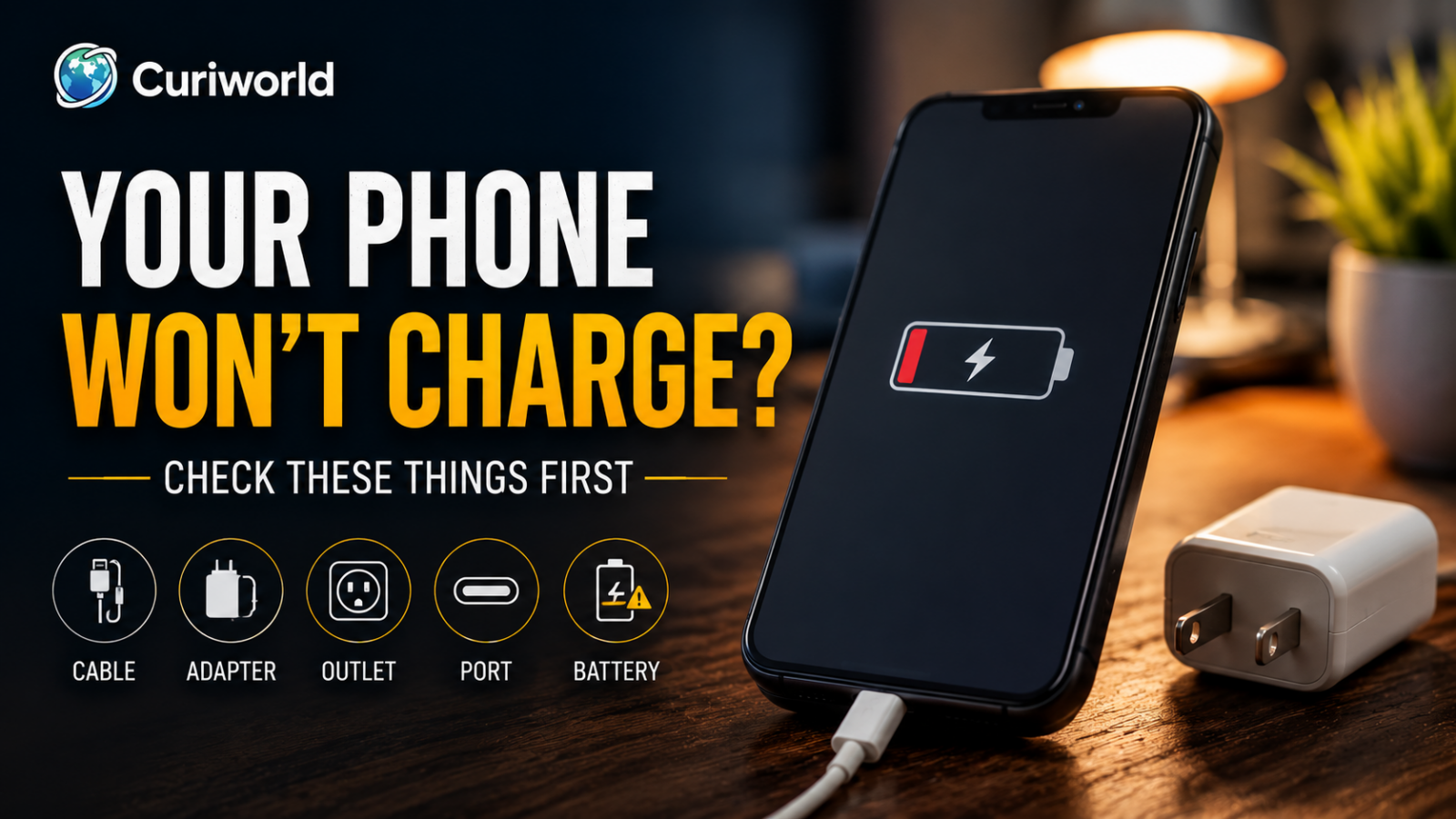
You plug in your phone, wait for the familiar charging symbol—and nothing happens.
It is easy to assume the battery has failed, but a phone that will not charge often has a much simpler explanation. The cable may be damaged, the adapter may not be delivering power, lint may be preventing a proper connection inside the charging port, or the battery may simply be so depleted that the screen needs time to respond.
The fastest way to find the problem is to test the charging chain one piece at a time.
Start With the Simplest Test: Is Power Actually Reaching the Phone?
A charging setup has several possible failure points:
power outlet → adapter → cable → charging port → phone
If any one of them fails, the result can look exactly the same: a phone that appears not to charge.
Start with the outlet.
Try another wall outlet, or test the original outlet with another device. If you are charging through a laptop, USB hub, car port, power strip, or another indirect power source, switch temporarily to a known-working wall outlet.
Then test the charger.
If possible, use the same cable and adapter to charge another compatible device. If that device also refuses to charge, you have already narrowed the problem considerably.
This basic isolation test can save a surprising amount of troubleshooting.
The Cable May Look Fine and Still Be the Problem
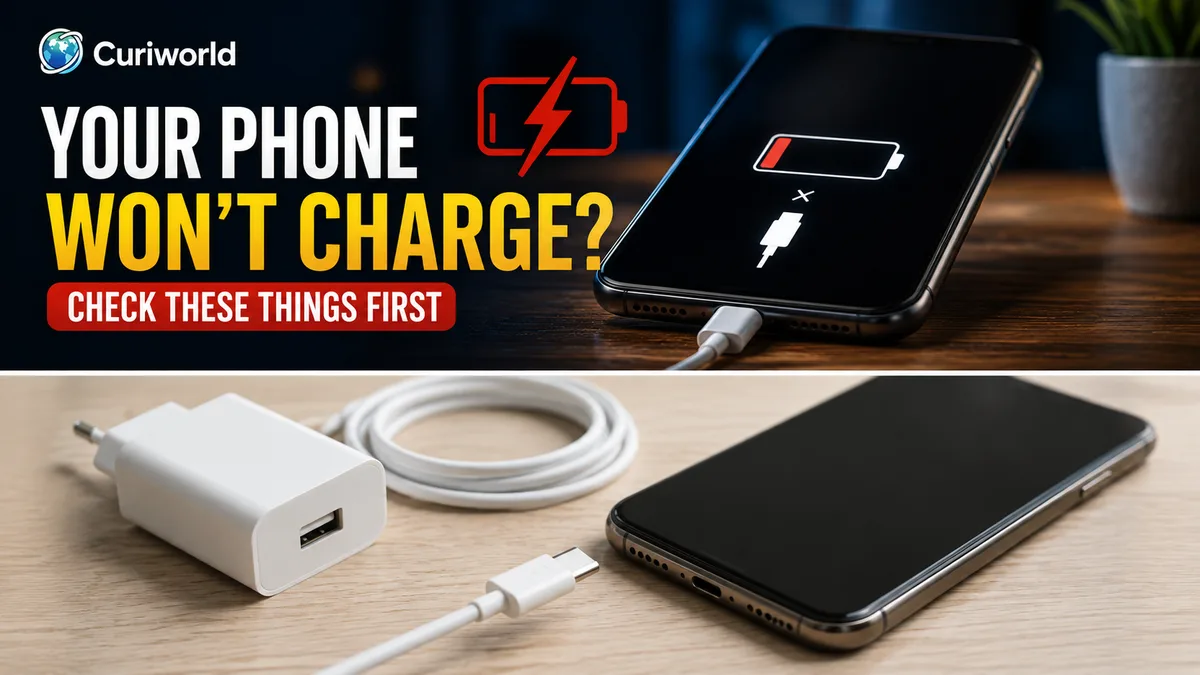
Charging cables live difficult lives.
They are bent near the connector, pulled from bags, trapped under furniture, twisted around adapters, and plugged in thousands of times. Damage is not always obvious from the outside.
Inspect the cable and both connectors.
Look for:
- frayed or exposed wiring;
- bent connectors;
- damaged pins;
- discoloration or signs of overheating;
- a connector that feels unusually loose;
- or charging that starts and stops when the cable moves.
Do not continue using a visibly damaged charging cable.
Even when there is no visible damage, testing with another known-working compatible cable is one of the quickest ways to rule the cable in or out.
Compatibility matters too.
A cable may physically fit the port without providing the charging performance the phone expects. Some phones can also warn that a connected accessory is unsupported or incompatible.
If another known-good cable immediately solves the problem, you probably do not need to investigate the battery at all.
Check the Power Adapter Separately
The cable is only half of a wired charger.
A failed or incompatible power adapter can produce the same symptoms.
Try another compatible adapter if one is available, preferably connected directly to a working wall outlet.
This is especially useful if the phone charges normally from one adapter but not another.
Also distinguish not charging from charging slowly.
A low-power source may deliver enough energy for the charging symbol to appear but not enough to increase the battery percentage quickly—especially while the phone is actively being used.
If your battery percentage remains almost unchanged while gaming, navigating, recording video, or performing another demanding task, the phone may be consuming much of the power it receives.
That is a different problem from receiving no power at all.
Your Charging Port May Not Be Making a Proper Connection
Phones spend a lot of time in pockets, bags, and other places where tiny particles accumulate.
Over time, lint or other debris can collect inside a charging port and prevent the connector from seating correctly.
One useful clue is physical.
Does the cable no longer plug in as firmly as it used to? Does it feel unusually loose? Does charging work only when the connector sits at a particular angle?
Inspect the port carefully in good light.
Both Apple and Google include checking the charging port for debris among their official troubleshooting steps.
Be conservative if cleaning appears necessary. The internal contacts are small and can be damaged. Do not aggressively scrape the port with metal objects or force anything inside it.
If you cannot safely identify or remove the obstruction, professional inspection is preferable to turning a small debris problem into physical port damage.
A Completely Dead Battery May Need Time Before the Screen Responds
A phone with an extremely depleted battery does not always react immediately when connected to power.
That can make a working charging setup look broken.
Google advises allowing a deeply discharged Android device to remain connected to a working charger before trying to restart it. Apple similarly recommends leaving an unresponsive iPhone connected to power before continuing troubleshooting.
So if the battery reached zero and the phone shut itself down, do not repeatedly disconnect and reconnect it every few seconds.
Connect it to a charger, make sure the outlet, adapter, and cable are known to work, and give it some time.
A charging symbol or low-battery indicator may eventually appear.
If nothing happens after a reasonable charging period with known-working equipment, continue troubleshooting.
Restarting the Phone Is Worth Trying
Charging involves more than hardware.
The operating system also monitors the battery, temperature, connected accessories, and charging state. A temporary software problem can occasionally interfere with normal behavior.
If the phone still has enough power to operate, restart it and reconnect the charger.
If the screen is black and the device appears completely unresponsive, the appropriate forced-restart procedure depends on the manufacturer and model.
Do not randomly hold combinations of buttons if you are unsure. Check the manufacturer’s instructions for your specific device.
A restart will not repair a broken charging port or damaged cable, but it is a low-effort way to rule out a temporary software problem before assuming hardware has failed.
If Your Phone Stops Charging at 80%, It May Not Be Broken
A phone that charges normally and then stops around 80% presents a different problem from a phone that refuses to charge at all.
Modern smartphones can deliberately manage charging to reduce battery stress.
For example, Apple uses charging optimization features that can delay charging beyond 80% in certain circumstances. Supported iPhones can also use a user-selected Charge Limit.
Temperature can affect charging behavior as well. Apple states that charging may be limited when the battery becomes too warm and can resume after the device cools.
So if your phone reliably reaches a particular percentage and then pauses, do not immediately assume the battery or charger has failed.
Check the device’s battery and charging settings first.
Temperature Can Temporarily Stop Charging
Charging produces heat, and smartphones monitor their temperature to protect internal components.
If a device becomes too hot—or, on some devices, too cold—charging can be slowed or temporarily paused until the phone returns to an acceptable temperature.
Think about the environment.
Was the phone sitting in direct sunlight?
Was it left in a hot vehicle?
Were you gaming or using navigation while charging?
Is the device unusually hot to the touch?
If so, disconnect it from unnecessary activity and move it to a moderate environment. Do not try to cool an overheated phone aggressively with ice, a freezer, or other extreme methods.
Curiworld’s guide to a phone getting hot while it is not being used can help if unexplained heat is occurring even when the device should be idle.
Temperature can also affect how a lithium-ion battery behaves in the opposite direction. If the problem appears specifically during freezing conditions, our explanation of how cold weather affects phone batteries covers that issue separately.
Moisture Warnings Should Not Be Ignored
Some smartphones can detect moisture or liquid around the charging connector and deliberately prevent wired charging.
That protection exists for a reason.
If your phone displays a liquid or moisture warning, disconnect the cable and follow the manufacturer’s drying instructions.
Do not repeatedly override a safety warning simply because the battery is low.
Avoid inserting objects into a wet charging port, and do not use extreme heat to speed up drying.
The correct drying procedure varies by manufacturer, so this is one situation where the instructions for your specific phone matter more than generic internet tricks.
Wireless Charging Has Its Own Failure Points
If your phone supports wireless charging, a failed wireless charge does not necessarily mean the battery is defective either.
Alignment matters.
The charging coils in the phone and charging pad need to be positioned correctly. A thick case, magnetic accessory, wallet attachment, grip, or another object between the phone and charger can interfere with charging.
If wireless charging is not working:
- Remove the case and attached accessories temporarily.
- Reposition the phone carefully on the charging pad.
- Make sure the wireless charger itself is connected to power.
- Test the phone with a compatible wired charger if possible.
- Test the wireless charger with another compatible device if available.
These tests can reveal something useful.
If the phone charges by cable but never wirelessly, the battery itself is unlikely to be the first suspect.
If wireless charging works but several known-good cables fail through the physical port, the charging port deserves more attention.
That difference helps isolate the problem.
Charging Slowly Is Not the Same as Not Charging
A phone may technically be charging even when the battery percentage barely moves.
The power source may be weak. The cable or adapter may not support the phone’s preferred charging standard. The phone may be heavily used while connected, or charging may be intentionally slowed because of temperature or battery-management features.
If the phone is charging reliably but simply takes much longer than expected, use our slow-charging troubleshooting guide to check the charger, cable, power source, temperature and fast-charging requirements.
Try this simple comparison:
Connect the phone to a known-working compatible wall charger, lock the screen, stop demanding applications, and leave it alone for a while.
If the percentage begins rising normally, the charging system is working.
The issue is more likely related to charging speed, available power, temperature, or simultaneous phone use than a total charging failure.
If you are also dealing with unusually short runtime after unplugging, Curiworld’s guide to what can make a phone battery drain unusually fast addresses that separate problem.
Use Wired and Wireless Charging as a Diagnostic Test
If your phone supports both methods, having two charging paths gives you a useful troubleshooting tool.
Consider these patterns:
Wired charging fails, wireless charging works:
The cable, adapter, physical charging port, or wired connection becomes more suspicious.
Wireless charging fails, wired charging works:
Look more closely at charger compatibility, alignment, the phone case, attachments, or the wireless charging hardware.
Neither method works:
The issue may be deeper, especially after you have verified the chargers and power sources independently.
This does not provide a definitive diagnosis, but it can narrow the search before you pay for a repair.
Test One Part at a Time
When a phone will not charge, changing everything simultaneously makes troubleshooting harder.
A better order is:
1. Test the outlet
Use a wall outlet you know works.
2. Test the cable
Try another compatible, known-working cable.
3. Test the adapter
Swap the power adapter while keeping the rest of the setup consistent.
4. Inspect the charging port
Look for debris, damage, or a connector that no longer seats properly.
5. Give a fully depleted battery time
Leave the device connected to known-working charging equipment before assuming it is dead.
6. Restart the phone
Rule out a temporary software problem when possible.
7. Check temperature and charging warnings
A thermal, moisture, accessory, or charging-optimization message may explain the behavior.
8. Compare wired and wireless charging
If your phone supports both, the difference can help identify which part of the charging system is failing.
This sequence is more useful than immediately buying a new charger—or assuming the battery needs replacement.
When the Problem Starts Looking Like Hardware
There comes a point where home troubleshooting stops being useful.
Professional inspection becomes more sensible when:
- several known-working compatible cables and adapters fail;
- the charging port appears physically damaged;
- the connector only works at a particular angle;
- wired and wireless charging both fail despite verified chargers;
- the phone repeatedly reports charging errors;
- the device has recently suffered significant impact or liquid exposure;
- or the battery or phone enclosure appears swollen.
A swollen battery deserves particular caution.
Do not continue charging the phone, squeeze the enclosure back into position, puncture the battery, or attempt an improvised repair. Follow the device manufacturer’s safety and service guidance.
The Fastest Fix Is Usually the One You Can Prove
A phone that will not charge can make the battery seem like the obvious suspect.
Often, it is not.
The useful approach is to work from the outside inward: verify the outlet, adapter, and cable; inspect the charging port; give a deeply discharged battery enough time; restart the device; then consider temperature, software, charging optimization, and hardware.
Every successful test eliminates possibilities.
If another cable works, you have learned something. If wireless charging works but the port does not, you have learned something else. If the phone stops at 80% but otherwise charges normally, the behavior may be intentional rather than a failure.
Charging problems become much less mysterious once you stop asking only “Why won’t my phone charge?” and start asking “Where in the charging chain is power being interrupted?”
Sources
Apple Support — If your iPhone or iPod touch won’t charge
Google Android Help — Fix an Android device that won’t charge or turn on




Join the discussion