Why Does Your Phone Screen Dim Even When Brightness Is at Maximum?
Your brightness slider says 100%, but the screen suddenly looks much darker. The reason may have more to do with heat than your brightness setting.
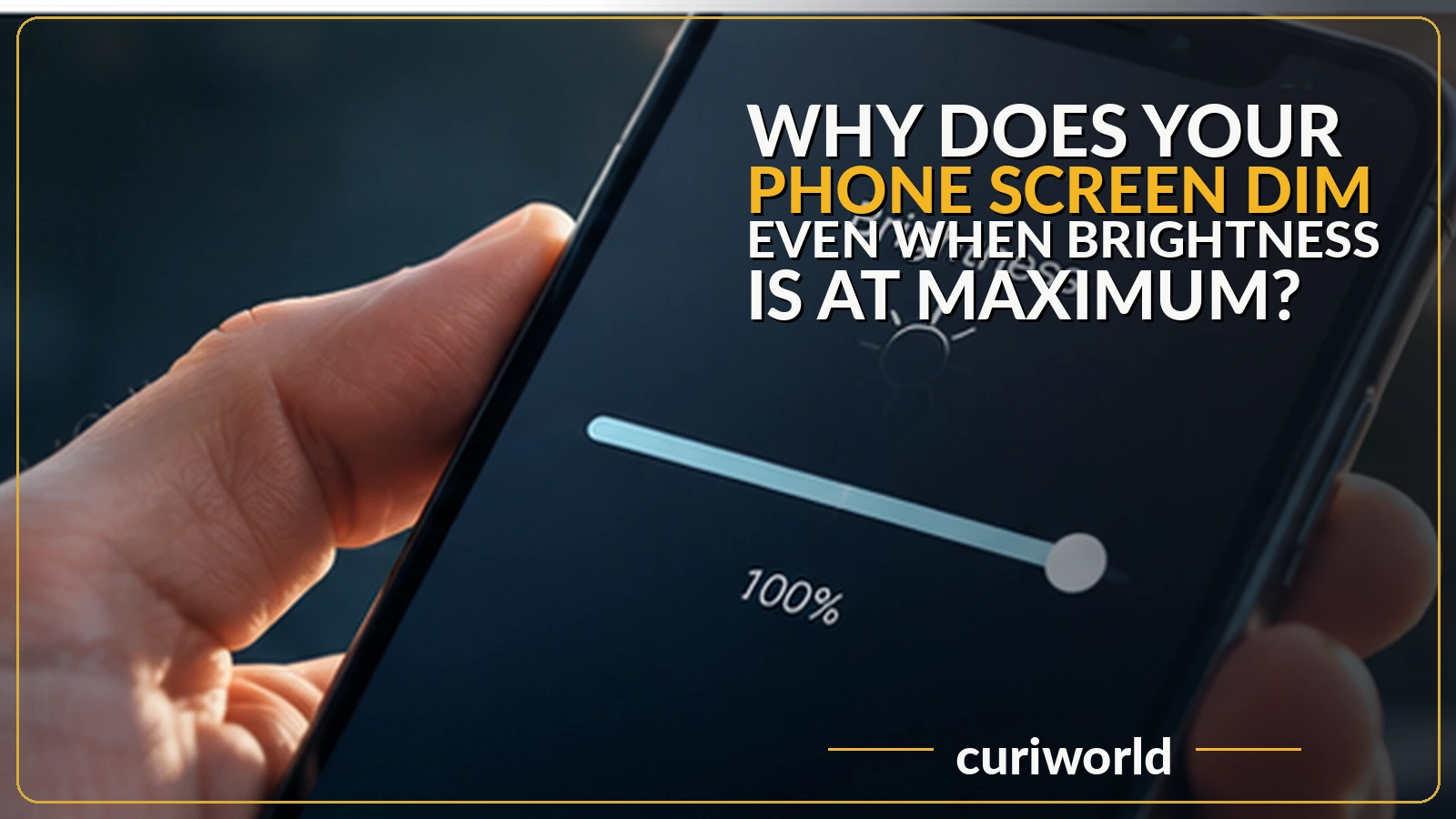
Your brightness slider is pushed all the way to the right, yet the screen suddenly looks noticeably darker. Moving the slider does nothing. A few minutes later, the display may brighten again without you changing a single setting.
In many cases, the slider is not broken.
A phone can deliberately reduce the actual light output of its display even while the brightness control still appears to be at maximum. Heat protection is one of the most common reasons, but adaptive brightness, power-saving features, sensors, and display settings can also change what you see.
The key detail is easy to miss: “100% brightness” does not always mean the phone is currently allowing the screen to produce its maximum possible brightness.
Heat Can Override Your Brightness Setting
If the screen becomes dim after gaming, recording video, using navigation in direct sunlight, charging, or spending a long time outdoors, temperature should be one of the first things you consider.
Bright displays generate heat. So do processors, cameras, cellular radios, batteries, and charging.
When several of those systems are working hard at the same time, the phone’s internal temperature can rise quickly.
Modern smartphones contain thermal-management systems designed to prevent excessive heat from damaging components or making the device unsafe to use.
Reducing display brightness is one of the tools available to them.
Apple explicitly states that if an iPhone or iPad becomes too warm, its display may dim and its maximum screen brightness can be reduced until the device cools down.
That explains one of the most confusing versions of the problem.
The brightness slider may still look as though it is at 100%, but the operating system has temporarily lowered the maximum brightness the display is permitted to produce.
Your slider is asking for maximum brightness.
The phone’s thermal system is effectively answering:
Not right now.
If the phone becomes warm even while the screen is off or you are barely using it, see why a phone can get hot while you’re not using it.
On iPhone and iPad, Apple explicitly states that when the device becomes too warm, the display may dim and the maximum available brightness can be reduced until the device cools down.
That is an important distinction: the brightness slider may still appear to be at maximum even though thermal protection has temporarily lowered what the display is allowed to output.
Why This Happens So Often in Direct Sunlight
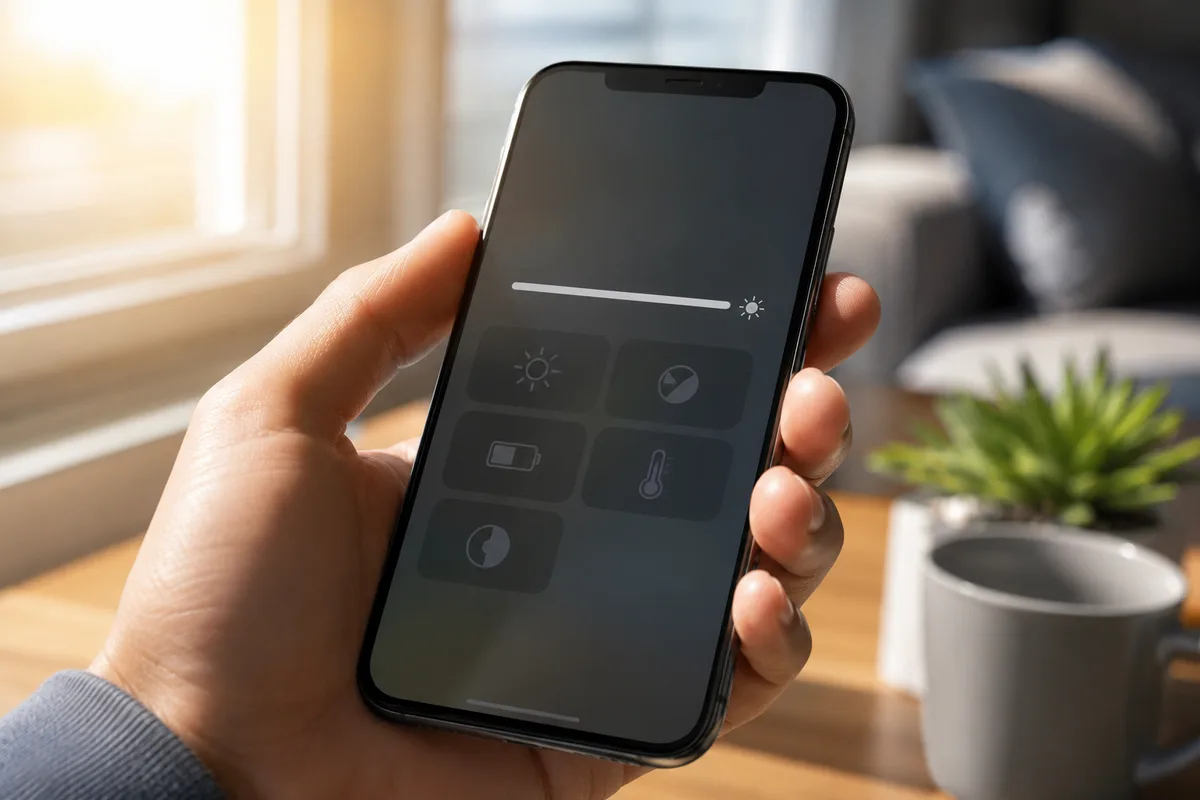
Bright sunlight creates an awkward problem for phones.
You need more screen brightness because the display is competing with intense ambient light. At the same time, sunlight itself is heating the device.
Add GPS navigation, cellular data, a camera, or charging inside a hot car and the phone may be dealing with several heat sources at once.
The result can seem backwards.
At first, the display becomes extremely bright so you can see it outdoors.
Then, after the phone warms up, the display becomes darker precisely when you need brightness most.
That is often thermal management rather than a faulty brightness control.
If the phone becomes much brighter again after being moved into the shade and allowed to cool, heat was probably involved.
Maximum on the Slider Is Not the Same as Maximum Panel Output
The word maximum is more complicated than it appears on a modern phone.
A display may have different brightness limits depending on temperature, ambient light, device mode, and manufacturer settings.
That means the brightness slider is better understood as a user preference within the limits the phone currently permits.
Those limits can change.
This is why two moments with the slider at exactly the same position can produce visibly different screen brightness.
Manufacturers can also reserve certain high-brightness behavior for particular conditions. The display system is constantly balancing visibility, power consumption, heat, and panel protection.
So comparing the slider position alone does not always tell you how much light the display is actually producing.
Adaptive Brightness May Still Be Making Decisions for You
Heat is not the only explanation.
Most modern smartphones can use an ambient-light sensor to adjust screen brightness automatically.
On iPhone, Auto-Brightness uses the ambient-light sensor to lower brightness in darker environments and raise it in brighter ones. Apple says the feature is enabled by default.
Samsung Galaxy devices have a similar feature called Adaptive brightness. Samsung explains that it changes screen brightness according to detected environmental light and can be turned off if frequent brightness changes become distracting.
If your screen brightens and darkens as you move between rooms, step outside, sit near a window, or cover the top of the phone, adaptive brightness is a more likely explanation than overheating.
A case, screen protector, dirt, or your hand can also interfere with sensors on some devices.
Samsung specifically recommends checking that the proximity sensor area is not obstructed if a Galaxy phone repeatedly dims or turns its display off unexpectedly.
Power-Saving Features Can Make the Screen Look Dimmer
Battery-saving modes exist to reduce power consumption, and the display is one of the largest power users in a smartphone.
That makes brightness an obvious place to save energy.
On supported Galaxy devices, Samsung notes that some Power saving settings can dim the display.
Other phones may handle battery-saving behavior differently, so the exact setting depends on the manufacturer and software version.
If the problem appears mainly when your battery is low, check whether Battery Saver, Low Power Mode, or a manufacturer-specific power-saving mode has activated.
Also look for accessibility features designed to reduce screen intensity. Some phones include an additional dimming mode that can make the display darker than the ordinary brightness slider would suggest.
These settings are particularly easy to forget if they were enabled from a quick-settings shortcut.
True Tone, Night Modes, and Dark Themes Can Feel Like Dimming
Not every perceived brightness change is an actual reduction in panel brightness.
The color of the screen matters too.
Features such as Apple’s True Tone adjust the color and intensity of the display according to surrounding light, while Night Shift changes the screen toward warmer colors.
Android manufacturers offer comparable eye-comfort, night-light, and color-temperature features.
A warmer display can sometimes feel less bright even when the brightness control has barely changed.
Dark Mode creates another perceptual difference. A screen filled with dark gray and black elements produces a very different visual impression from a mostly white webpage at the same brightness setting.
Before assuming the phone has reduced brightness, open a bright white screen and compare it with what you were viewing before.
Why Does the Screen Dim During a Phone Call?
That is usually a different system entirely.
Phones use a proximity sensor to detect when the device is close to your face during a call. The screen can then switch off or dim so your cheek does not accidentally press buttons.
If the display remains dark after moving the phone away from your face, something may be covering or confusing that sensor.
A poorly positioned screen protector, certain cases, dirt near the sensor area, or a software issue can sometimes cause unexpected behavior.
This type of dimming is more likely to occur specifically during calls rather than while gaming, browsing, or watching videos.
How to Work Out What Is Actually Causing It
The timing of the dimming usually provides the best clue.
If the screen dims after the phone becomes hot, after prolonged camera use, while gaming, during charging, or outside in strong sunlight, thermal protection is the leading suspect.
If the phone becomes warm even while the screen is off or you are barely using it, see why a phone can get hot while idle.
If brightness changes as the lighting around you changes, check Auto-Brightness or Adaptive brightness.
If it happens when the battery becomes low, inspect power-saving settings.
If it happens mainly during calls, check the proximity sensor area.
If the display simply looks warmer or less intense at certain times of day, inspect night-light, eye-comfort, color-temperature, and accessibility settings.
A useful test is to let the phone cool completely indoors, disconnect it from the charger, disable automatic brightness temporarily, turn off power-saving modes, and then test the display again.
If normal brightness returns, the screen itself is probably capable of producing the expected output.
Should You Try to Force the Screen Back to Full Brightness?
If heat is causing the reduction, trying to defeat the behavior misses the point.
The phone is deliberately limiting itself.
Move it away from direct sunlight, stop intensive apps for a while, unplug it if it is charging, and allow it to cool naturally.
Do not put an overheated phone in a refrigerator or freezer. Rapid temperature changes and condensation can create new problems.
Once the device returns to a normal temperature, thermal brightness restrictions should normally disappear automatically.
When Could It Be an Actual Display Problem?
Persistent dimming deserves more attention when it happens even though the phone is cool and the relevant automatic settings are disabled.
Watch for other symptoms:
- Brightness never returns to its previous level
- One part of the screen is darker than another
- The display flickers or changes unpredictably
- Brightness changes after physical or liquid damage
- Restarting and checking display settings make no difference
- The problem continues across different apps and lighting conditions
At that point, the issue may involve software, a sensor, the display assembly, or another hardware component rather than normal brightness management.
Checking for operating-system updates and restarting the device are reasonable first steps before contacting the manufacturer or an authorized repair provider.
The Brightness Slider Does Not Have the Final Say
A phone screen that dims with the brightness set to maximum can feel as though the device is ignoring you.
In a sense, it is—but often for a good reason.
The brightness control expresses how bright you want the screen to be. The operating system still has to decide what the device can safely and appropriately deliver at that moment.
When the phone is hot, thermal protection can lower the real maximum. Adaptive brightness can respond to the room around you. Power-saving and accessibility settings can impose additional limits, while color adjustments can make the screen appear dimmer without dramatically changing its light output.
So if your supposedly 100% screen suddenly looks like 60%, look at what the phone was doing immediately beforehand.
Very often, the mystery starts with heat—not the slider.
Sources
Apple Support — Adjust Brightness and Temperature-Related Dimming





Join the discussion